
Set up your company and its branches
Work in a multi-company database
What this does
One database can hold several companies. Some data is shared between them, the rest stays separate, and an authorized user can work across them without switching databases or re-typing anything.
Steps
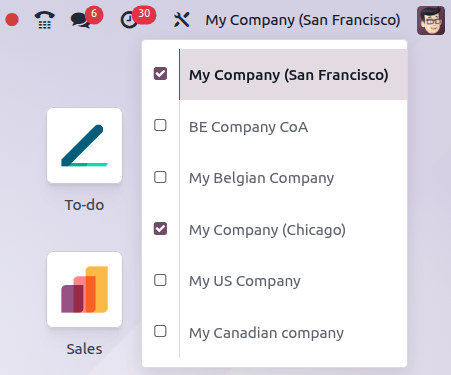
In WindoorERP, multiple companies can be configured under one database. This allows some data to be shared among companies while maintaining some separation between entities.
A centralized management environment allows authorized users to select multiple companies simultaneously and set their specific warehouses, customers, equipment, and contacts. It also generates reports of aggregated figures without switching interfaces, facilitating daily tasks and enhancing the overall management process.
- For monthly contracts: The subscription automatically switches to the Custom plan and the new rate is applied when the next bill is generated.
-
01
Click the company selector in the top-right corner of the header.
-
02
Tick the checkboxes next to the companies you want active.
-
03
The highlighted company is the one you are working in — new records are filed there.
-
04
Click another name in the list to make it the active one.
Configuration
Most General settings apply to all companies in the database. Company-specific settings are indicated with the (Values set here are company-specific) icon, and can also be accessed through company records.
Create or edit a company
To create or edit a specific company, navigate to Settings app › Users & Companies › Companies. Click New and fill out the form with the company's information or select an existing company to edit it.
Archive a company
To archive a company, follow these steps:
- In the Settings app, navigate to the Companies section and click Manage Companies.
- In the Companies list view, select the company to be archived.
- Click the Actions menu and select Archive.
- Click Archive to confirm.
Multi-company environment
In a multi-company environment, users are granted access to one or more companies, and data is created or modified based on its intended use within that structure.
User access
A multi-company environment allows flexible control over user access and access rights that can be granted or restricted as needed.
Company selector
To switch between (or select) multiple companies, follow these steps:
- Click the company selector in the top-right corner of the header menu.
- In the drop-down list, select the checkboxes next to the desired companies.
- The highlighted company indicates the current active environment.
- To switch to another company, click its name in the list of selected companies.
Example
In the example below, the user can access six companies, two of which are selected. The current active company is My Company (San Francisco).
Shared and company-specific records
Data, such as products, contacts, and equipment can either be shared across companies or restricted to a specific company by setting the Company field on relevant records:
- Leave the field blank to make the record accessible to all companies.
- Select specific companies to make the record visible to users logged in to those companies only.
Records specifically linked to a particular company are accessible only within that entity. For instance, quotations, invoices, and vendor bills associated with a company are visible only when logged into that company, and the corresponding company is automatically selected by default and displayed in the Company field.
In a multi-company database, new products and contacts are shared across companies by default. To restrict them to a specific company, set the Company field on the record's form.
Note
Individual properties in a shared record may be shared or company-specific. For example, product records share common Sales Price and Reference values, but the Cost value is company-specific. This allows for different cost structures across companies while maintaining consistent sales pricing and product references.
Inter-company transactions
The Inter-Company Transactions feature allows one company in the database to sell or purchase goods and services from another company within the same database. For inter-company transactions, product records are shared among the involved companies. Depending on the configuration settings, counterpart documents for orders and invoices can be automatically generated and synchronized.
Warning
To handle inter-company transactions correctly, general and specific configurations must be set properly, including fiscal positions and localizations.
To activate inter-company transactions, select the relevant company in the company selector, open the Settings app, navigate to the Companies section, enable Inter-Company Transactions, and click Save. Then, select the options to create a counterpart for the selected company:
- Create Vendor Bills: Automatically create a bill/refund when a company confirms an invoice/credit note for the selected company.
- Create Sales Orders: Automatically create a quotation (drafted sales order) when a purchase order is confirmed for the selected company.
- Create Purchase Orders: Automatically create a request for quotation (drafted purchase order) using the selected company warehouse in the Use Warehouse field when a sales order is confirmed for the selected company.
- Synchronize Stock Moves: Automatically synchronize stock moves between companies when fulfilling or receiving deliveries for the selected company.
To automatically validate the records, select Validated. This setting applies to all of the inter-company transaction options.
Note
The Use Warehouse field appears if Create Sales Orders or Create Purchase Orders is selected. However, WindoorERP does not automatically create warehouses for additional companies created after the initial database setup. Warehouses for each company must be created manually.
Inter-company transaction settings can also be accessed and modified by going to Settings › Users & Companies › Companies and selecting the company. Enable ../developer_mode and the Inter-Company Transactions tab appears.
Example
Create Bills and Refunds: when an invoice for Customer JS Store US is posted on JS Store Belgium, a vendor bill is automatically created in JS Store US.
Create Purchase Orders: when a sales order for Customer JS Store US is confirmed on JS Store Belgium, a purchase order on JS Store US is automatically created (and confirmed if the Create and validate option is selected).
Use cases
Multinational companies
A multinational retail chain operating in the United States and Canada must manage transactions in USD and CAD.
Since each country has its own tax laws and regulations, using WindoorERP's multi-company feature is highly beneficial.
This setup allows for inter-company transactions, which is essential for managing cross-border inventory transfers. It also simplifies the sales process by enabling customers transactions in their local currency.
Separate processes
A small furniture company is launching a new product line that requires separate procurement, inventory, and manufacturing workflows. These new products differ significantly from the existing catalog. To manage this efficiently, the company is considering using the multi-company feature to manage the new line as a separate business entity.
However, creating a completely new company might add unnecessary complexity to the database. Instead, the company can leverage existing features such as analytic accounting and multiple warehouses to manage the new product line without complicating overall operations.
Which settings are shared
Most settings in the Settings app apply to the whole database. The ones that do not are marked with the (Values set here are company-specific) icon, and can also be edited from the company record itself.
Common mistakes
- Splitting one business into two companies to keep a product line apart. Analytic accounting and a second warehouse usually do the job without doubling your chart of accounts.
- Expecting warehouses to appear for a company created after the initial setup — they have to be created by hand.
- Turning on inter-company transactions before the accounting, fiscal positions and localizations of both companies are right.
Was this article helpful?
Thanks — your feedback helps.
Running a window or door factory?
Ask for a demo