
Fill in a contact record properly
Merge duplicate contacts
What this does
Folds duplicate contacts into one record without losing their documents, so a customer stops appearing three times and being chased by two salespeople.
Before you start
- Merging cannot be undone. Open each record first and be certain they are the same party.
- Two companies with similar names are not duplicates. Check the tax ID before merging anything with accounting history.
Steps
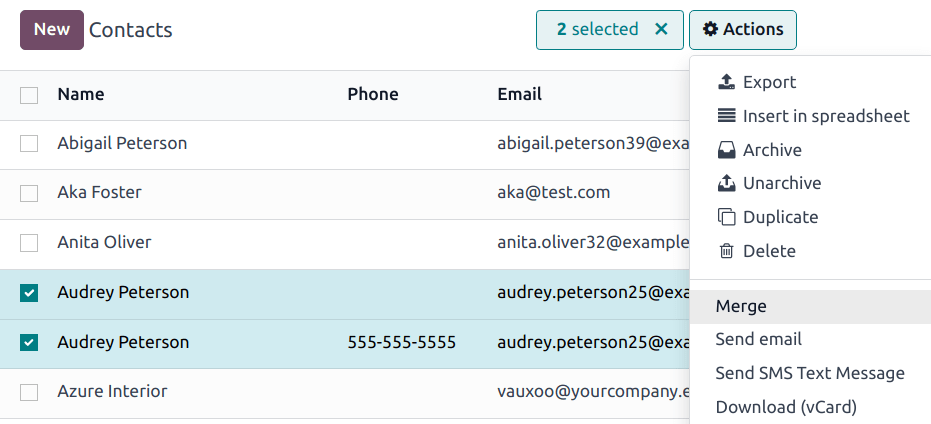
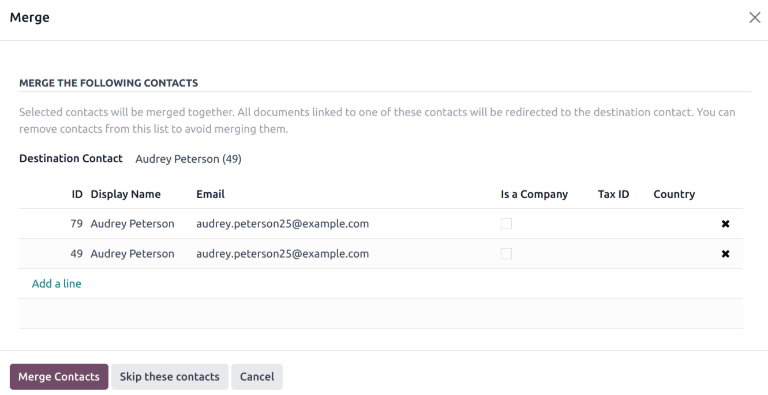
WindoorERP's Contacts application allows user's to merge duplicate contacts, without losing any information in the process. This keeps the database organized, and prevents contacts from being contacted by more than one salesperson.
-
01
Open the Contacts app and switch to the (list) view.
-
02
Tick the checkbox of each duplicate.
-
03
Click the (Actions) icon and choose Merge.
-
04
Review the list in the dialog. Remove anything that does not belong with the (delete) icon at the right of its row.
-
05
Set the Destination Contact — the record that survives. It defaults to the oldest one.
-
06
Click Merge Contacts.
Merge duplicate contacts
Warning
Merging is an irreversible action. Do not merge contacts unless absolutely certain they should be combined.
Navigate to the Contacts app, and select the (list) icon. Select two or more duplicate contacts from the list, and tick the checkbox (on the far-left) for the contacts that should be merged. Then, click the Actions icon, and select Merge from the resulting drop-down menu.
This opens the Merge pop-up window. From here, review the details of the contacts before confirming they should be merged. If any contacts in the list should not be merged, click the (delete) icon at the far right of the contact.
Tip
Click the individual contact to open the record for that contact, and view additional information.
Click the Destination Contact field, and select an option from the drop-down list. This field defaults to the contact record that was created first in the system.
After confirming the information on the pop-up window, click Merge Contacts.
Deduplicate contacts
After the merge is finished, a pop-up window appears confirming it is complete. This pop-up window also contains a Deduplicate the other Contacts button. This feature searches for duplicated records, based on selected criteria, and merges them automatically, or after manual approval.
Click the Deduplicate the other Contacts button to open the Deduplicate Contacts pop-up window.
Select one or more fields to be used in the search for duplicated records. Duplicated contacts can be searched, based on the following criteria:
- Name
- Is Company
- VAT
- Parent Company
Note
If more than one field is selected, only records that have all fields in common are suggested as duplicates.
If necessary, select criteria to be used to exclude potential duplicates from the search. Potential duplicates can be excluded from the search, based on the following criteria:
- A user associated to the contact
- Journal Items associated to the contact
After confirming the search criteria, click either Merge with Manual Check, Merge Automatically, or Merge Automatically all process.
If Merge with Manual Check is selected, complete the merge by following the steps above.
Find the rest of the duplicates
The confirmation offers Deduplicate the other Contacts, which hunts for duplicates across the whole database. Choose the fields that define a duplicate for you — Email, Name, Is Company, VAT, Parent Company — remembering that selecting several means a record must match all of them.
You can also exclude candidates that have a user account or accounting entries attached. Then pick Merge with Manual Check to approve each pair yourself, or one of the automatic options.
Common mistakes
- Running an automatic deduplication on name alone. Two different people share a name more often than you think.
- Choosing the newer record as the destination and losing the reference the accounts team has been using for years.
- Merging a company into one of its own child contacts.
Was this article helpful?
Thanks — your feedback helps.
Running a window or door factory?
Ask for a demo