
Understand how WindoorERP sends and receives email
Receive incoming email in the database
What this does
An inbound message is any email delivered to your database: someone writing to an alias, or a customer replying to something WindoorERP sent. This is how you make both arrive in the right chatter.
Steps
An inbound message is an email delivered to a WindoorERP database. Anyone can send an email to an email alias created in the database or reply to an email that was previously sent from the database based on the reply-to header.
-
01
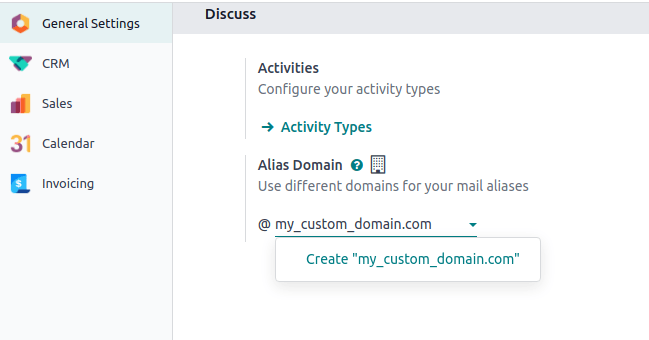
Set the alias domain your database will use: open Settings and fill Alias Domain in the Discuss section. With several companies, do it for each one.
-
02
Decide how mail addressed to that domain reaches the database — redirections, incoming mail servers, or DNS records (below).
-
03
Make sure the catchall and bounce addresses are covered by whichever method you chose, not just the team aliases.
-
04
Send a test email to an alias and confirm the record it should create appears.
Email aliases
Model specific aliases
Some applications have their specific aliases (sales teams, helpdesk teams, projects, etc.). These aliases are used to:
- Create a record when an email is sent directly to the alias,
- Receive replies to an email initially sent from a record.
Catchall
If an application does not have an alias, a generic fallback alias is used: the catchall. An email sent from a chatter has a reply address set to this catchall alias. A reply sent to the catchall is posted to the right chatter thanks to the message-id header.
By default, the local-part catchall will be used. Enable developer-mode and go to Settings › Technical › Emails: Alias Domains to access the configuration.
An email to the catchall always needs to be a reply to a previous email sent from the database. If an email is sent directly to the catchall, the sender will receive the following message:
Note
The email address info@company-name.com displayed in the screenshot above is the email address set on the company. Upon entering the developer mode on a company profile, additional configuration options (such as catchall and bounce) become readable. It can be modified by clicking on the internal link of the Email Domain. It is generally not recommended to modify these options unless specific needs dictate, as it will affect all replies to previously sent emails.
Note
It is advised to keep the local-part of the catchall and the bounce unchanged. If this value is modified, previous emails sent from the database will still have the previous local-part values. This could lead to replies not being correctly received in the database.
Bounce
In the same way the catchall alias is used to build the reply address, the bounce alias is used to build the return-path of the email. The return-path is used when emails cannot be delivered to the recipient and an error is returned to the sender.
By default the name bounce will be used. Enable developer-mode and go to Settings › Technical › Emails: Alias Domains to access the configuration.
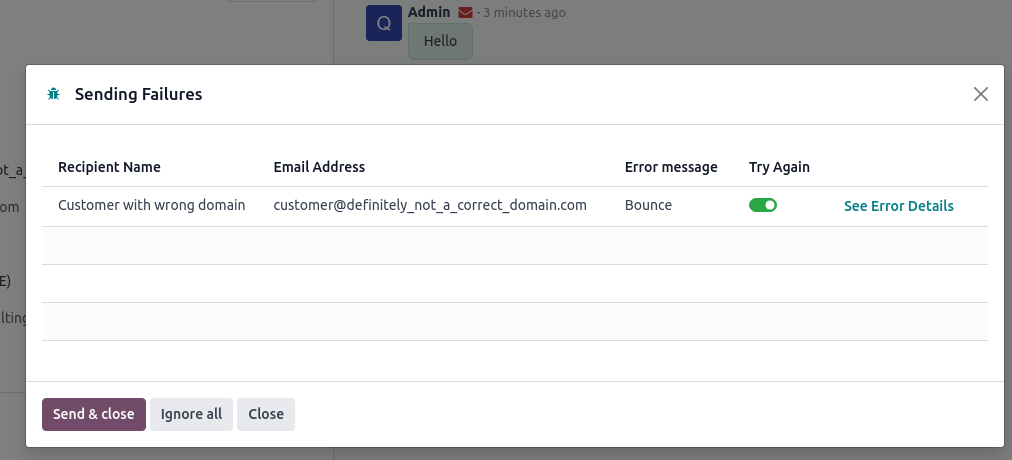
When an error occurs, a notification is received and displayed in a red envelope in the chatter. In some cases, the red envelope can just contain a no error message, meaning there is an error that could not be handled by WindoorERP.
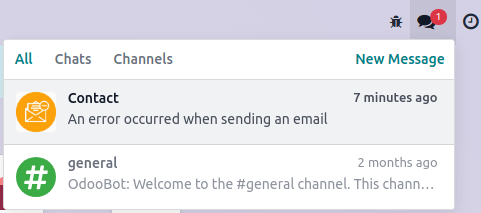
A notification will also be displayed in the Discuss icon on the navigation bar.
Example
If the email address of the recipient is incorrect, by clicking on the red envelope in the chatter an error message containing the reason for the failure will be given.
Receive emails with WindoorERP's default configuration
The database domain is ready to be used to receive emails without any additional configuration.
Use a custom domain for inbound messages
The alias domain must be selected in the general settings. If you have multiple companies, each one must be configured.
All the aliases will use this custom domain. Replies on models for which an alias is configured are done to [alias]@my-custom-domain.com. Replies to other models are sent to the catchall through catchall@my-custom-domain.com.
Important
If emails are sent using WindoorERP's email servers while using a custom domain, follow the "Using a custom domain with WindoorERP’s email server" instructions.
Since this custom domain is used, all emails using an alias (replies, bounces and direct sends) are sent to an address of the domain. They are thus delivered to the email server linked to the domain (MX record). To display them in the chatter or to create new records, it is necessary to retrieve these incoming emails in the WindoorERP database.
| Method | Benefits | Drawbacks |
|---|---|---|
| Redirections | Easy to set up, emails are directly sent to the database. | Each alias of a database needs to be configured. |
| Incoming mail servers | Allows to keep a copy of the email in your mailbox (with IMAP). Allows to create records in the chosen model. | Depends on a CRON, meaning emails are not retrieved immediately in the database. Each alias of a database needs to be configured. |
| DNS records | Only one record needs to be created to make all aliases work properly. | Using a subdomain is required. Requires advanced technical knowledge. |
Important
For on-premise databases, the redirection and the DNS record methods also require configuring the mail gateway script. Going through this script requires advanced technical and infrastructure knowledge.
Important
Refer to your provider’s documentation for more detailed information on how to handle the methods detailed below.
Redirections
Warning
When configuring email redirections with Microsoft 365 (Exchange Online), be aware that certain technical limitations may affect your setup. Some users have reported that Microsoft 365 does not support true redirection and only allows forwarding, which may not behave as needed for WindoorERP's email routing.
For more information on Microsoft Exchange configuration, visit Microsoft Learn.
Example
With one sales team, the following redirections are required:
Important
Some providers ask to validate the redirection by sending a link to the target email address. This procedure is an issue for catchall and bounce since they are not used to create records.
- Modify the catchall value on the mail alias domain. developer-mode must be enabled to access this menu. For example, it can be changed from
catchalltotemp-catchall. This will allow to usecatchallas the local-part of another alias. - Open an app that uses an alias. For example, CRM contains aliases for each sales team. Set
catchallas the local-part of the alias of a sales team. - The validation email will create a record in the CRM app. The email sent will be visible in the chatter, allowing you to validate the redirection.
- Do not forget to change back the alias of the sales team and the catchall value on the mail alias domain, just as they were before this procedure.
An alternative to redirections is forwarding. With forwarding, the address forwarding the email will be identified as the sender, while with redirections, the original sender will always remain.
Important
When using email redirection to manage incoming messages, additional configuration may be required to ensure correct behavior.
Some email providers, such as Gmail, require the redirection address to be explicitly confirmed before emails are forwarded, otherwise the redirection may not function.
Incoming mail servers
As mentioned earlier, using redirections is the recommended method to receive emails in WindoorERP. However, it is also possible to set up incoming mail servers. Using this method means creating an incoming email server for each mailbox on your server, catchall, bounce, and every alias of the database, in order to fetch all incoming emails.
Warning
WindoorERP's Incoming Mail Servers feature is designed for shared inboxes (e.g., sales@yourcompany.com or support@yourcompany.com) to route messages to team pipelines, tickets, or documents.
Using personal email addresses (e.g., mitchell.admin@yourcompany.com) as incoming mail servers is not recommended. Doing so can lead to increased security risks, unintended message routing, privacy issues, and difficulties syncing replies correctly.
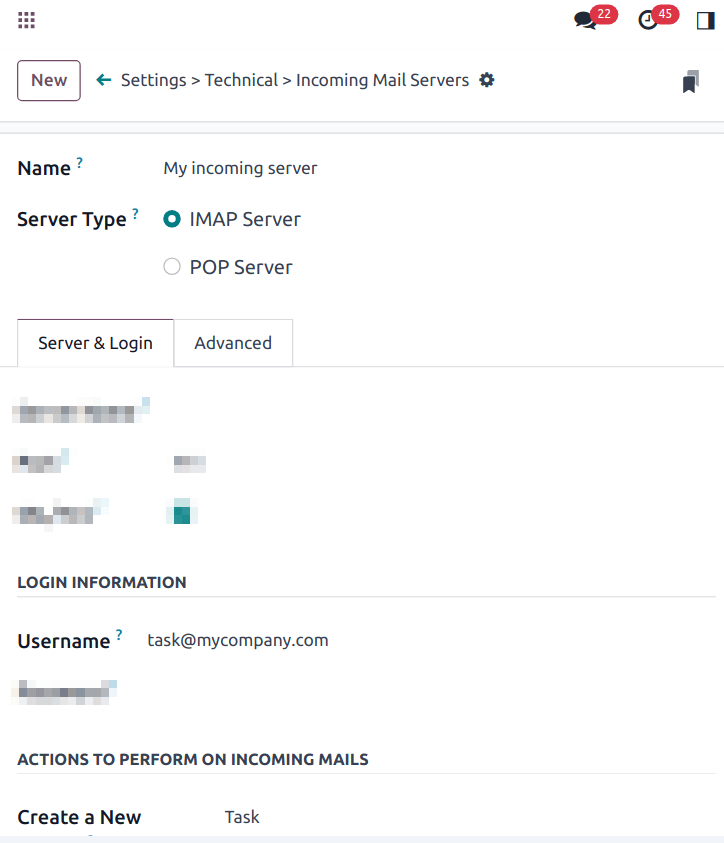
Incoming mail servers are created by going to Settings › Technical › Emails: Incoming Mail Servers.
Important
We recommend using the IMAP protocol over the POP protocol, as IMAP fetches all unread emails, while POP fetches all the emails' history and then tags them as deleted in your mailbox.
Tip
It is also possible to connect a mailbox through Gmail with Google OAuth or Outlook with Microsoft Azure OAuth.
Regardless of the protocol chosen, emails are fetched using the Mail: Fetchmail Service scheduled action.
Additionally, using an incoming mail server in WindoorERP gives the opportunity to create new records in a specified model. Each incoming mail server can create records in a different model.
Example
Emails received on task@company-name.com are fetched by the WindoorERP database. All fetched emails will create a new project task in the database.
DNS records
A third option is to use a dedicated subdomain (for example, mail.mydomain.com) and configure its DNS records so that emails sent to addresses on that subdomain are handled by WindoorERP and processed directly within your database.
Note that this subdomain will be dedicated to email traffic. If it is accessed in a web browser, users will be redirected to the first website configured on the database (if applicable).
Since a new subdomain is being configured for inbound mail, its DNS records must also be set up for outbound mail.
- Access your DNS settings
- If your domain is hosted with a third-party registrar (for example, GoDaddy, Namecheap, Cloudflare), log in to the registrar and open the DNS management zone for your domain.
- If WindoorERP manages your DNS:
- Click the (gear) icon beside the database and choose Domain Names.
- Click DNS, then Add DNS record.
- Create a CNAME record
- Name / Host: the subdomain you want to use (for example,
mail).
- Name / Host: the subdomain you want to use (for example,
- Add the subdomain to your WindoorERP portal
- Click Use my own domain, enter the full subdomain (for example,
mail.mydomain.com). When verification succeeds, click I confirm, it's done.
- Click Use my own domain, enter the full subdomain (for example,
- Add the alias domain to the database
- Log in to the database and open the Settings app.
- In the Alias Domain field, enter the subdomain you configured (for example,
mail.mydomain.com).
- Access your DNS settings
- Log in to your third-party registrar (for example, GoDaddy, Namecheap, Cloudflare) and open the DNS management zone for your domain.
- Create a CNAME record
- Name / Host: the subdomain you want to use (for example,
mail). - Select the production branch, go to the Settings tab, and locate the Custom domains section.
- Enter the full subdomain (e.g.,
mail.mydomain.com) and click Add domain.
- Name / Host: the subdomain you want to use (for example,
- Add the alias domain to the database
- Log in to the database and open the Settings app.
- In the Alias Domain field, enter the subdomain you configured (for example,
mail.mydomain.com).
- If WindoorERP manages your DNS:
- If your domain is hosted with a third-party registrar (for example, GoDaddy, Namecheap, Cloudflare), log in to the registrar and open the DNS management zone for your domain.
Infinite email loops
In some cases, infinite mailing loops can be created. WindoorERP provides some protection against such loops, ensuring the same sender cannot send too many emails that would create records to an alias in a specific time span.
By default, an email address can send up to 20 emails in 120 minutes. If more emails are sent, they are blocked and the sender receives the following message:
To change the default behavior, enable developer-mode, then go to Settings › Technical › Parameters: System Parameters to add two parameters.
- For the first parameter, enter
mail.gateway.loop.minutesas the Key and choose a number of minutes as the Value (120is the default behavior). - For the second parameter, enter
mail.gateway.loop.thresholdas the Key and choose a number of emails as the Value (20is the default behavior).
Allow alias domain system parameter
Incoming aliases are set in the WindoorERP database to create records by receiving incoming emails. To view aliases set in the WindoorERP database, first activate the developer mode. Then, go to Settings app › Technical › Aliases.
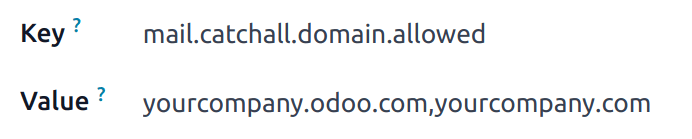
The following system parameter, mail.catchall.domain.allowed, set with allowed alias domain values, separated by commas, filters out correctly addressed emails to aliases. Setting the domains for which the alias can create a ticket, lead, opportunity, etc., eliminates false positives where email addresses with only the prefix alias, not the domain, are present.
In some instances, matches have been made in the WindoorERP database when an email is received with the same alias prefix and a different domain on the incoming email address. This is true in the sender, recipient, and CC email addresses of an incoming email.
Example
When WindoorERP receives emails with the commercial prefix alias in the sender, recipient, or CC email addresses (e.g. commercial\@example.com), the database falsely treats the email as the full commercial alias, with a different domain, and therefore, creates a ticket/lead/opportunity/etc.
To add the mail.catchall.domain.allowed system parameter, first, activate the developer mode. Then, go to Settings app › Technical › System Parameters. Click New. Then, type in mail.catchall.domain.allowed for the Key field.
Next, for the Value field, add the domains separated by commas. Manually (Save), and the system parameter takes immediate effect.
Local-part based incoming detection
When creating a new alias, there is an option to enable Local-part based incoming detection. If enabled, WindoorERP only requires the local-part to match for routing an incoming email. If this feature is turned off, WindoorERP requires the whole email address to match for routing an incoming email.
Aliases, catchall and bounce
- Model aliases — sales teams, helpdesk teams and projects have their own address. Mail sent there creates a record; replies to mail sent from one of those records come back to the same address.
- Catchall — the fallback used when a model has no alias of its own. Emails from a chatter carry it as their reply-to, and the message-id header is what routes the reply back to the right record. Writing to the catchall directly never creates anything; the sender is bounced with a note telling them which address to use instead.
- Bounce — the return path. Delivery errors are sent here, and turn into the red envelope you see in the chatter.
Both local-parts are configured in developer mode under Settings › Technical › Emails: Alias Domains. Leave them alone unless you have a specific reason: emails already sent still quote the old values, and replies to them stop being routed.
When delivery fails
A failure shows up as a red envelope in the chatter and as a notification on the Discuss icon in the top bar. Click the envelope to read why.
The three methods
- Redirections — easy to set up and immediate, but every alias has to be redirected one by one, catchall and bounce included.
- Incoming mail servers — keep a copy of each mail in your mailbox and can create records in a chosen model, but depend on a scheduled action, so mail arrives in batches rather than instantly. One server per mailbox.
- DNS records — one record makes every alias work, but needs a dedicated subdomain and real technical knowledge.
On a self-hosted database, redirections and DNS records also need the mail gateway script configured on the server. That is infrastructure work — ask info@windoorerp.com rather than improvising it.
Dedicated subdomain
The third route is a subdomain reserved for mail —
mail.yourdomain.com — whose DNS points at the server that runs your
database. One record then serves every alias. The subdomain becomes mail
traffic only: opening it in a browser just lands on the first website of
the database. Its outbound records (SPF, DKIM) have to be published
too.
Runaway loops
WindoorERP refuses to let one sender create records endlessly: by
default 20 emails in 120 minutes, after which the sender gets a bounce
telling them to try again later. To change the limits, add two system
parameters in developer mode under Settings › Technical
› Parameters: System Parameters:
mail.gateway.loop.minutes and
mail.gateway.loop.threshold.
False matches on aliases
If an unrelated address happens to share an alias's local-part —
commercial@example.com against your
commercial alias — the database can mistake it for the real
thing and create a lead. Restrict it with the
mail.catchall.domain.allowed system parameter, whose value
is your allowed domains separated by commas.
Common mistakes
- Redirecting the team aliases and forgetting catchall and bounce — every reply to an ordinary email then disappears.
- Renaming the catchall or bounce local-part on a database that has already sent mail.
- Using POP because it was first in the list, then finding the mailbox emptied.
- Blaming the database for silence when the DNS records still point somewhere else.
Was this article helpful?
Thanks — your feedback helps.
Running a window or door factory?
Ask for a demo