
Getting Started
Move work through stages
What this does
Stages are the columns of a pipeline: the ordered steps a card — an opportunity, a ticket, a job — passes through. They are yours to rename and reorder to match how your team actually works.
Before you start
- Developer mode must be active to reach the stages menu: Settings › General Settings › Developer Tools › Activate the developer mode.
- Stages belong to the app you are in — the pipeline of one team is not the pipeline of another.
Steps
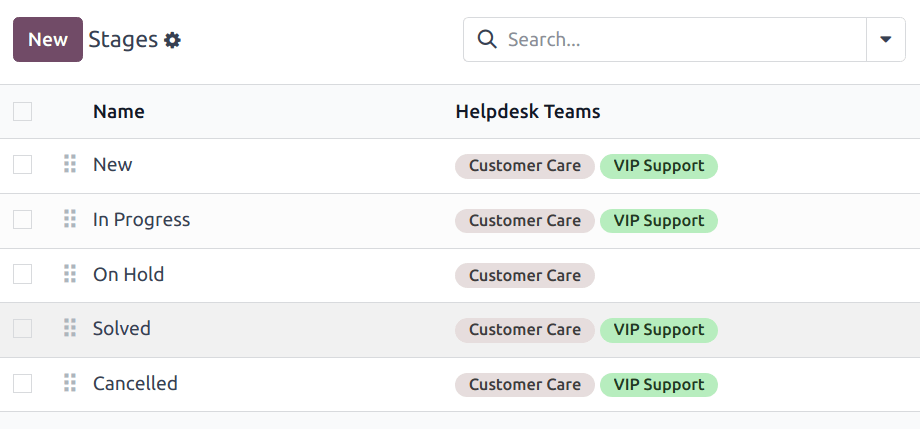
Stages are used to organize an app's pipeline and track the progress of configured items, from now on are referred to as cards.
In apps these cards represent specific items, for example, in the Helpdesk app, stages track tickets. Stages are customizable, and can be renamed to fit the needs of each team.
-
01
Go to the app and open Configuration › Stages. They are listed in pipeline order.
-
02
Drag the (draggable) handle at the left of a row to reorder them. In the kanban view you can drag whole columns instead.
-
03
Click New to add one, and give it a Name.
-
04
Pick the Teams the stage belongs to — a stage can serve more than one team.
-
05
Save.
Create or modify stages
Important
Developer mode must be activated to access the stages menu. To activate developer mode, go to Settings app › General Settings › Developer Tools, and click Activate the developer mode.
To view or modify stages, go to the desired app and go to Configuration › Stages.
The default list view on the Stages page displays the stages currently available in the app. They are listed in the order they appear in the pipeline.
To change the order of the stages, click the (draggable) icon, to the left of the stage name, and drag it to the desired place on the list.
Tip
Change the stage order on the Kanban view of a team's pipeline by dragging and dropping individual columns.
To create a new stage, click the New button at the top-left of the stage list. Doing so reveals a blank stage form.
Choose a Name for the new stage.
Rotting lead detection
Note
The Days to rot feature is only available to apps that use stages, for instance, CRM and Helpdesk apps. This feature is automatically disabled by setting it to zero.
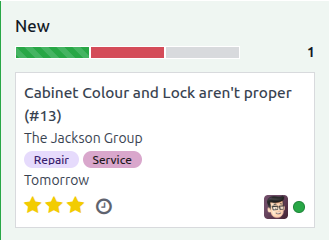
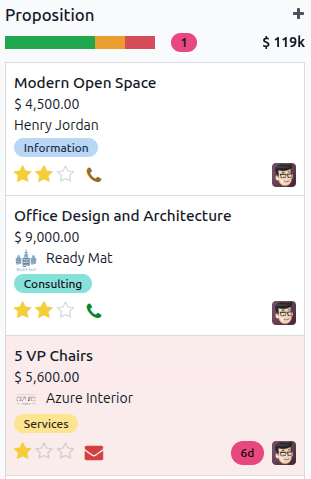
The Days to rot feature provides proactive notification when a specific card within that stage requires attention. When a card passes the defined rotting threshold, it becomes highlighted in red and the stage displays the total number of cards currently rotting.
To enable this feature, the Kanban view must be active. Navigate to the desired app and click on the (Kanban) icon.
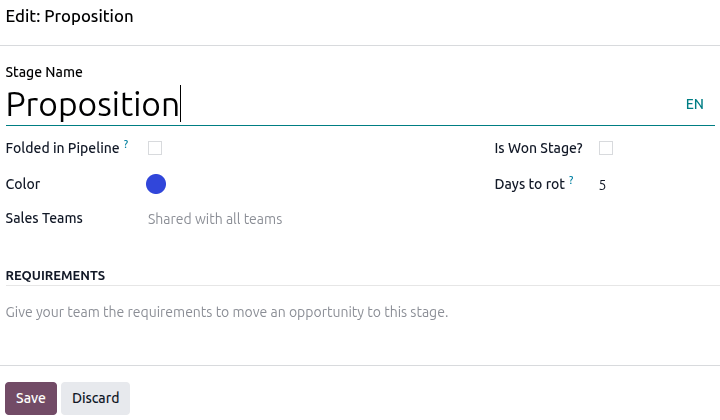
To set the threshold for a stage, click on the (Settings) icon for the relevant stage and select Edit from the drop-down menu. A configuration window will appear.
In the Days to rot field, enter the number of days that marks the threshold before action is needed. Click Save to apply the configuration.
Progress bar
The progress bar is visible above each stage, displaying the percentage breakdown of every status type for all the cards within that stage. Each status type has an assigned color that appears within the bar.
The specific definition of these statuses changes depending on the app. For example, in the Helpdesk app, the progress bar for a stage consists of the In progress, Ready, and Blocked statuses by default.
To see a detailed count, hover over a representative color, which activates a notification detailing the number of cards in the stage of that specific status.
Clicking a status color filters the stage to show only cards with that status. The card count for the selected status appears next to the progress bar.
Add email and SMS templates to stages
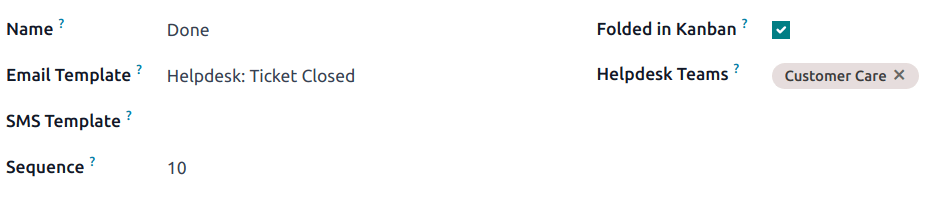
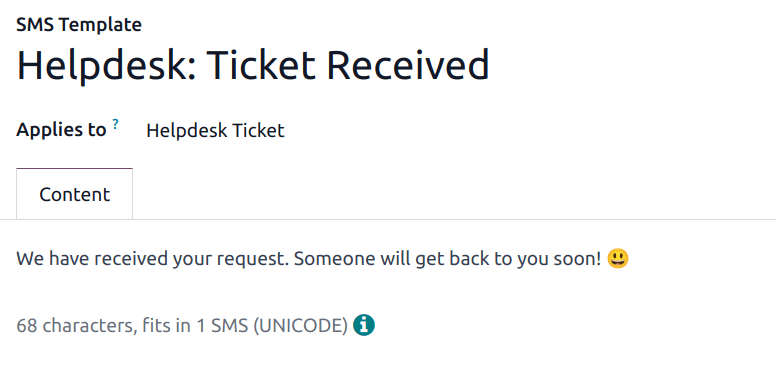
When an Email Template is added to a stage, a preconfigured email is automatically sent to the customer when a ticket reaches that specific stage in the pipeline. Likewise, adding an SMS Template triggers a preconfigured SMS text message to send to the customer.
To select an existing email template, select it from the Email Template field. After choosing a template, click on the (right arrow) icon to the right of the field to edit the chosen template.
To create a new template from this form, click the field, and enter a title for the new template. Then, select Create and edit from the drop-down menu that appears, and complete the form details.
Follow the same steps to select, edit, or create an SMS Template.
Fold a stage
By default, stages are unfolded in the Kanban view. If there is a Won or Closed stage, it is folded by default.
Cards in an unfolded stage are visible in the pipeline under the stage name, and are considered open.
Stages can be configured to be folded in the Kanban view of the pipeline page.
The name of the folded stages are still visible, but the cards in the stage are hidden from view.
To fold a stage, tick the Folded in Kanban checkbox on the Stages form.
Warning
Cards that reach a folded stage are considered closed. Closing a card before the work is completed can result in reporting and communication issues. This setting should only be enabled for stages that are considered closing stages.
Temporarily fold a stage
Stages can be temporarily folded in the Kanban view of the pipeline, as well.
View a specific team's pipeline by navigating to the desired app, and clicking the team's Kanban card.
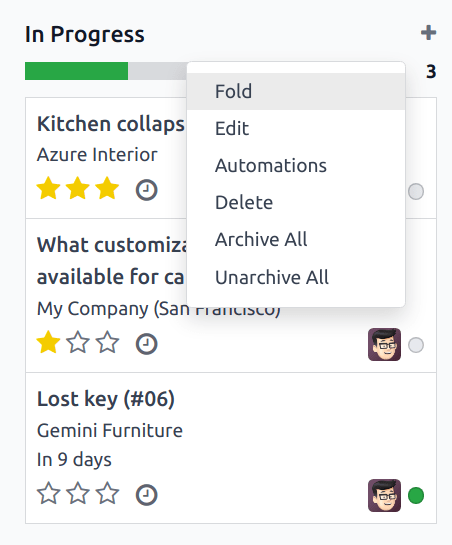
Hover the cursor at the top of the desired stage to fold temporarily, then click the (gear) icon that appears, and select Fold from the drop-down menu.
Important
Manually folding a stage from the Kanban view is temporary and does not close the cards in the stage.
Assign stages to a team
Make a selection in the Teams field on the Stages form. More than one team may be selected, since the same stage can be assigned to multiple teams.
Catch work that has gone quiet
In apps that use stages, Days to rot flags cards left sitting too long: past the threshold, the card turns red and the stage shows how many are rotting.
- Switch to the kanban view.
- Click the (settings) icon on the stage and choose Edit.
- Enter a number of days in Days to rot — zero turns the feature off.
- Save.
Send an email or SMS on arrival
An Email Template on a stage sends automatically when a card reaches it; an SMS Template does the same by text message. Pick an existing template, or type a new name and choose Create and edit. Sending SMS needs a messaging provider configured for your database.
Common mistakes
- Ticking Folded in Kanban on a working stage — every card in it counts as closed, and your reports quietly go wrong.
- Deleting a stage that still holds cards instead of moving them first.
- Setting an email template on a stage without checking what it says: the customer receives it the moment anyone drags a card.
Was this article helpful?
Thanks — your feedback helps.
Running a window or door factory?
Ask for a demo