
Understand how WindoorERP sends and receives email
Send outgoing email from the database
What this does
Sets up the SMTP server your database sends through, and the address your recipients see in the From line.
Before you start
- You need a domain you own and an SMTP account with a provider — your own mail server, or a sending service.
- Ask your provider for the host, port, encryption and credentials, and for what they expect in the From address.
- Port 25 is blocked by most hosting providers. Use 465, 587 or 2525.
Steps
-
01
Open Settings, find the Emails section, and enable Use Custom Email Servers.
-
02
Click Save at the top of the page.
-
03
Back in the Emails section, click Outgoing Email Servers, then New.
-
04
Fill in the connection details from your provider, and set FROM Filtering to the domain or address that provider is allowed to send as.
-
05
Click Test Connection, then send a real test email. A successful connection test only proves the login works, not that the provider will accept the message.
Sending emails with WindoorERP's default configuration
This configuration is handled by the system parameter mail.default.from_filter. In case where the sender's domain do not match the value of this parameter, the notification address is used instead. Multiple values can be defined in this system parameter: comma-separated, domains or full email addresses are all allowed. Once an outgoing mail server is configured, the system parameter is no longer considered and the value used is the FROM filtering of the mail server.
Note
The catchall, bounce, and notification addresses do not work like other aliases. They do not have the vocation to create records in a database. Emails sent to an alias are automatically routed and will reply to an existing and linked record or will create a new one in the database.
Using a custom domain to send emails
The database can be configured to use a custom domain, in which case all default email addresses are built using the custom domain. If the custom domain is company-name.com, the sender address will be notifications@company-name.com, the reply-to address catchall@company-name.com, and the bounce address bounce@company-name.com. The custom domain can be utilized when sending emails either with WindoorERP’s email servers or an external one.
This section assumes ownership of a custom domain. If not, a custom domain must be purchased from a domain registrar such as GoDaddy, Namecheap, or any alternative provider.
Using a custom domain with WindoorERP’s email server
Warning
Most of the configuration will be done on the domain provider’s side, and it might require some configuration on the mail server itself. Some technical knowledge is required.
The first step is to configure the SPF and DKIM to be compliant with WindoorERP’s mail server.
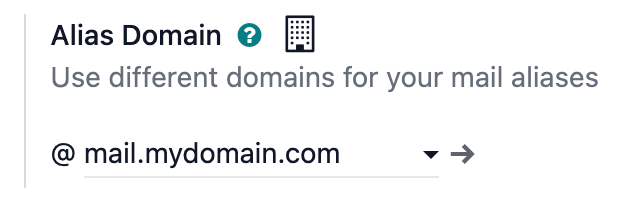
Next, the custom domain must be set as the alias domain of a company. Select the company, open the Settings, and add the custom domain under the Alias Domain field.
After adding the alias domain, click the (internal link) icon to assign more companies to the custom domain if needed. Enable the developer-mode mode to modify the default aliases if desired:
- Bounce Alias: the mailbox used to catch delivery errors and populate the red envelope on the corresponding message.
- Catchall Alias: the default mailbox used to centralize all replies.
- Default From Alias: the default sender address.
Note
At the creation of the first alias domain, all companies will use it. If you create a new company, the alias domain automatically set is the one with the lowest priority (ad displayed on the alias domain list in developer-mode).
All email aliases (e.g., related to CRM or Helpdesk teams) must have their corresponding mailbox in the custom domain mail server.
To receive emails in the WindoorERP database within the corresponding chatter (CRM, invoices, sales orders, etc.), one of these three methods must be used:
- Redirections/forwarding,
- Incoming mail servers,
- DNS records (requires advanced technical knowledge)
Using a custom domain implies that specific local-parts might be used by WindoorERP to send emails.
Sending emails with an external SMTP server
To add an external SMTP server in WindoorERP, open Settings, and enable the Use Custom Email Servers option found under the Emails section. Then, click Save at the top of the page to save the changes.
Returning to the Emails section, click Outgoing Email Servers, then New to create an outgoing mail server record. Most fields are the common parameters used to set up a connection to an SMTP server; use the values provided by your email provider.
Once completed, click Test Connection. Note that a successful test connection does not confirm that the email will go out as some restriction might remain on the provider side, thus, it is recommended to consult your provider’s documentation.
Local-part values
Below are presented the different local-part values that can be used by WindoorERP to send emails. It might be required to whitelist them in your mail server:
- The Alias Domain Bounce Alias (default value =
bounce), - The Alias Domain Default From (default value =
notifications), - The specific FROM defined on an email marketing campaign,
- The specific FROM that can be defined in an email template.
Setting up different servers for transactional and mass emails
Personalized mail servers
Transactional emails and mass mailings can be sent using separate email servers in WindoorERP. Doing so means day-to-day emails, quotations, or invoices sent to clients will be handled as transactional emails. Mass mailing emails, including the sending of batches of invoices or quotations, will be managed by the Marketing Automation or Email Marketing application.
Example
You can use services like Gmail, Amazon SES, or Brevo for transactional emails, and services like Mailgun, Sendgrid, or Mailjet for mass mailings.
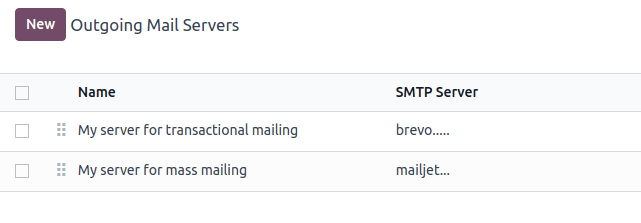
First, activate the developer-mode and go to Settings › Technical › Email: Outgoing Mail Servers. There, add two outgoing email server records, one for the transactional emails server and one for the mass mailings server. Enter a lower Priority value for the transactional server (e.g., 1) over the mass mailings server (e.g., 2) so transactional emails are given priority.
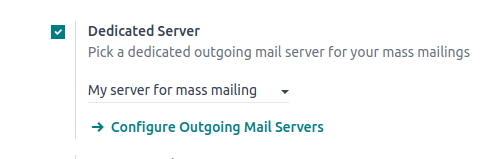
Now, go to Email Marketing › Configuration › Settings, enable Dedicated Server, and select the appropriate email server. WindoorERP uses the server with the lowest priority value for transactional emails, and the server selected here for mass mailings.
FROM filtering
Important
It’s highly recommended to configure the FROM Filtering on the outgoing mail servers as per the instructions of your provider.
The FROM Filtering field allows for the use of a specific outgoing email server depending on the From email address or domain that WindoorERP is sending on behalf of. The value must be a domain or a complete address that matches the sender’s email address and is trusted on the outgoing mail server provider's side.
If FROM filtering is not used, emails will go out using the notification address.
Warning
Some outgoing mail servers require a specific configuration of the FROM filter.
When an email is sent from WindoorERP, the following sequence is used to choose the outgoing email server:
- First, WindoorERP searches for a server that has the same FROM filtering value as the From value (i.e., email address) defined in the outgoing email. This configuration is ideal if all users of a company share the same domain but have different local-parts.
Example
If the sender's email address is test@example.com, only an email server having a FROM filtering value equal to test@example.com or example.com can be used.
- If no server is found based on the first criteria, WindoorERP looks for the first server without a FROM filtering value set. The email will be overridden with the notification address.
- If no server is found based on the second criteria, WindoorERP uses the first server, and the email will be overridden with the notification address.
Note
To determine which server is first, WindoorERP uses the priority value (the lower the value is, the higher the priority is). Failing to do so, the first server is determined by the servers' names, using alphabetical order.
- If there is no mail server, WindoorERP relies on the system parameter value.
It is also possible to use WindoorERP's mail server for transactional emails in addition to mass mailings.
Using an external email server and WindoorERP’s default server
Example
If an outgoing mail server is used simultaneously with WindoorERP’s default server (CLI), the FROM filter of the outgoing mail server must contain a custom domain, and the FROM filter of the CLI must contain WindoorERP’s subdomain. If there is no FROM filtering, the email will go out using the notification address.
Warning
WindoorERP’s mail server is meant for transactional emails and small-scale marketing campaigns. The daily limit depends on the database type and the applications used.
Using a custom domain with an external email server
Similar to the previous chapter, proper configuration might be needed to ensure that the external email server is allowed to send emails using your custom domain. Refer to your provider’s documentation to properly set up the relevant records (SPF, DKIM, and DMARC). A list of the most common providers is available.
Note
DNS configuration is required when you use your own domain. If an external outgoing mail server is used, configuring the records as described in the WindoorERP DNS configuration for our mail servers documentation will not have the desired effect, as it is independent of WindoorERP when using a custom email server. WindoorERP does not allow the configuration of WindoorERP's subdomain.
Alias domain
When the developer-mode is activated, the alias domain options are available by going to Settings › Technical › Email: Alias Domains.
Warning
Any modification of the alias domain must be done very carefully. If one of the aliases (bounce, catchall, default from) is changed, all previous emails that are not properly redirected to the new aliases will be lost.
The Default From Alias field can be filled with a local-part of the email address (by default notifications) or a full email address. Configure it to determine the FROM header of your emails. If a full email address is used, all outgoing emails will be overwritten with this address.
Notification system
When an email is sent from the chatter, customers can reply directly to it. If a customer replies directly to an email, the answer is logged in the same chatter, thus functioning as a message thread related to the record.
Upon receiving the reply, WindoorERP then uses the subscribed followers (based on the subscribed subtypes) to send them a notification by email, or in the WindoorERP inbox, depending on the user’s preferences.
Example
If a customer with the email address “Mary” <mary@customer.example.com> makes a direct reply to an email coming from the WindoorERP database, WindoorERP's default behavior is to redistribute the email's content to all other followers within the thread.
Using a unique email address for all outgoing emails
To force the email address from which emails are sent, activate the developer-mode, and go to Settings › Technical › Email: Alias Domains. On the Default From Alias, use the local-part or a complete email address as the value.
Warning
If a complete address is used as the Default From Alias value, all outgoing emails will be overwritten by this address.
The addresses WindoorERP builds
Once a custom domain is set as the alias domain of a company, every
system address follows it: notifications@yourdomain.com as
the sender, catchall@yourdomain.com for replies and
bounce@yourdomain.com for delivery errors. In developer
mode, Settings › Technical › Email: Alias
Domains lets you rename them:
- Bounce Alias — catches delivery errors and fills the red envelope on the message.
- Catchall Alias — the mailbox that centralises replies.
- Default From Alias — the default sender. A local-part keeps the domain flexible; a full address overrides the sender on every outgoing email.
Every alias you use must have a real mailbox on that domain, and every local-part the database sends from may need whitelisting on the provider: the bounce alias, the default-from alias, the admin address, the bot address, plus any specific From set on a campaign or a template.
Which server is used for which email
With more than one outgoing server, the pick goes like this:
- A server whose FROM Filtering matches the sender's address or domain exactly.
- Otherwise, the first server with no FROM filtering at all — and the email is rewritten to come from the notification address.
- Otherwise the first server, again rewriting the sender.
"First" means lowest Priority value, and alphabetical
order between equals. This is why FROM filtering is worth setting
properly: without it, mail your customers expect from a named person
arrives from notifications@ instead.
Separate transactional and marketing mail
Day-to-day mail — quotations, invoices, notifications — and bulk campaigns behave differently enough to deserve different servers, often different providers.
- In developer mode, go to Settings › Technical › Email: Outgoing Mail Servers.
- Create two servers: one for transactional mail, one for campaigns.
- Give the transactional server the lower
Priority value (for example
1against2), so ordinary mail always takes it. - Go to Email Marketing › Configuration › Settings, enable Dedicated Server, and select the campaign server.
Why replies seem to come from the wrong person
When a customer replies, their message is relayed to the other followers of the record. Their own address cannot be used as the sender — your domain is not allowed to send on their behalf — so the notification address is used instead, with their name kept in front of it. That is the correct behaviour, not a bug.
Common mistakes
- Setting a full address as Default From Alias and finding every email in the database now comes from it.
- Changing an alias without redirecting the old one: replies to everything sent before the change are lost.
- Pointing an SMTP account at a domain it is not authorised to send for — the provider rejects it, and the reason is buried in the error message.
- Running a campaign through a transactional provider and getting the account rate-limited.
Was this article helpful?
Thanks — your feedback helps.
Running a window or door factory?
Ask for a demo