
Understand how WindoorERP sends and receives email
Fix an email that did not arrive
What this does
Walks the usual causes of a missing email, from the red envelope in the chatter to the mail queue behind it.
Before you start
- WindoorERP is not an inbox. Once a notification or transactional email is sent, the message object is deleted — the content lives in the chatter of its record.
- There is no CC or BCC. Who receives what is decided by the followers of the record.
- Incoming mail that matches no address and no reply reference is bounced, not parked in a spam folder. It is gone.
- Give the admin account a real email address. The placeholder one created with the database causes sending failures on its own.
Steps
This page lists the most common emailing issues and their solutions.
-
01
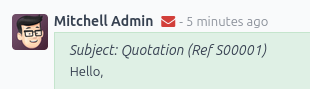
Open the record and look at the envelope icon in the chatter. Red means at least one recipient failed.
-
02
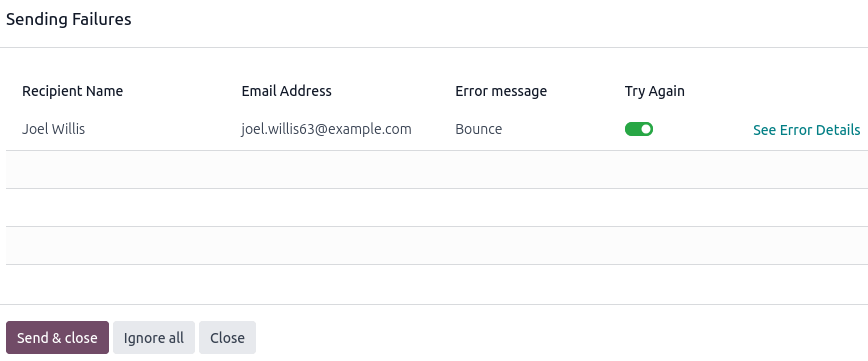
Click the envelope to see which recipients failed and why.
-
03
Click See Error Details for the underlying error, when the database managed to interpret the bounce.
-
04
Fix the cause — usually a wrong address, an unauthorised sender domain, or a provider rejection.
-
05
Click Send & close to retry the recipients left toggled on, or Ignore all to clear the red envelope without resending.
WindoorERP is not an email provider
WindoorERP does not function like a classic email inbox, such as Gmail, Outlook, Yahoo, etc.
While WindoorERP uses emails as a way to notify and communicate with users/customers, it is, by design, not a replacement for a dedicated email server. Therefore, it might not behave in the expected way when compared to a traditional email inbox.
The main differences are the following:
- By default, once a notification or transactional email (quote, invoice, direct message to a contact) is sent out successfully, the email object is deleted. The email message's content lives in the chatter of the related record. It prevents cluttering the database with multiple copies of the content of the same email (when sent to multiple recipients) if the content is already present in the chatter.
- There is no concept of (blind) carbon copy ([B]CC). WindoorERP uses the concept of followers added to a chatter to automatically decide when and how a contact is notified or receives a copy of an email.
- Incoming emails are handled by checking if the TO email address is a valid email address in the WindoorERP database or, in case of a reply email, if there is a reference in the email header that matches a message sent from the WindoorERP database. All other emails will be bounced and not temporarily parked in a spam or quarantine folder. In other words, any email unrelated to a WindoorERP database is lost.
Outgoing emails
Changing the email address of the admin user account
When a WindoorERP database is created, the main admin account is assigned a placeholder email address. It is recommended to replace the admin email address with a valid email address to prevent outgoing email issues.
Delivery failure
When a message is sent, an (envelope) icon is displayed in the chatter. The icon turns red when delivery has failed for at least one recipient.
Left-click the envelope to display information about the delivery, and, if possible, the relevant error messages.
Click See Error Details to get extra information for the fail reason, if WindoorERP was able to process the original error or bounce email.
Click Send & close to retry sending the email to all toggled-on () recipients under the Try Again column. All toggled-off () recipients will be ignored.
Click Ignore all to ignore all currently failing emails and turn the envelope icon from red to white.
Unsent emails also appear in the WindoorERP email queue. To access it, activate the developer mode and go to Settings › Technical › Email: Emails.
Failed emails display the Delivery Failed status. Click Retry to put a failed email in the email queue again. It will then appear with the Outgoing status. The email will be sent again the next time the scheduled action for the email queue runs.
Optionally, queued emails can be sent immediately by clicking Send Now. Click Cancel Email to remove it from the email queue.
Note
Sent emails are periodically cleaned from the queue. This is controlled by the Auto-Vacuum scheduled action that cleans redundant data on your WindoorERP database.
Common error messages
Daily limit reached *******************
The default daily email limit varies between 5 and 200 emails. The exact limit is depends on several factors (subject to change):
- Type of database subscription (one app free, trial, paying subscription)
- Apps installed (i.e., Email Marketing, Marketing Automation)
- If a database migration is ongoing
If the daily limit is reached, you can:
- Numbers of users on the database
- Apps installed
- Bounce rate (the percentage of email addresses that did not receive emails because they were returned by an email server on their way to the final recipient).
- Whether your email aliases are correctly set up and use the appropriate custom domains.
Tip
When using a custom domain, verify that SPF, DKIM, and DMARC are correctly configured so that WindoorERP's email servers are allowed to send emails on your custom domain's behalf.
- Use an external outgoing email server to be independent of WindoorERP's email limit.
- Wait until the next day, and retry sending the email. To do so, activate the developer mode, go to Settings › Technical › Email: Emails, and click Retry next to the unsent email.
Important
The daily email limit counts every email leaving your WindoorERP database, triggered either manually or automatically. By default, any internal message, notification, logged note, etc., counts as an email if it notifies someone via email. This can be mitigated by receiving notifications in WindoorERP instead of by email.
SMTP error **********
Simple Mail Transport Protocol (SMTP) is a standard used to transmit emails between email servers and/or email clients.
If you use an external STMP server to send emails, a standard set of SMTP error codes exists. While the code numbers are not specific to WindoorERP, the exact content of the error message might vary from email server to email server.
Example
A 550 SMTP permanent delivery error from sendgrid.com:
Mail Delivery Failed
Mail delivery failed via SMTP server 'None'.
SMTPDataError: 550
The from address does not match a verified Sender Identity. Mail cannot be sent until this
error is resolved. Visit https://sendgrid.com/docs/for-developers/sending-email/sender-identity/
to see the Sender Identity requirements
The error message indicates that you tried sending an email from an unverified email address. Investigating the outgoing email server configuration or the default FROM address of your database is a good starting point to troubleshoot the issue, and verify that you whitelisted the email address on the side of sendgrid.com.
Usually, inputting the error message content in a Google search can yield information on what the root cause might be and how to correct the issue.
No error populated ******************
WindoorERP is not always capable of providing information on the reason a delivery failed. The different email providers implement their own policy on bounced emails, and it is not always possible for WindoorERP to interpret it correctly.
Note
One of the most common reasons for an email failing to be sent with no error message is related to the SPF or DKIM configuration. Also, verify that the implemented email notification setup is adapted to your business needs. See the Communication in WindoorERP by email documentation for more information.
Execution time
The exact time of an email is sent is handled by a system utility cron (scheduled action) that can be used to schedule tasks to run automatically at predetermined intervals. WindoorERP uses this approach to send emails that are considered "not urgent" (i.e., newsletters formats such as mass mailing, marketing automation, and events). This avoids cluttering the mail servers and, instead, prioritizes individual communication.
A cron is an action that WindoorERP runs in the background to execute particular code to complete a task. WindoorERP also creates cron triggers in certain workflows that can trigger a scheduled action earlier than its scheduled date. Running a scheduled action manually or changing its frequency is generally not recommended, as it might create errors or break specific workflows.
By default, for the normal email queue, the Mail: Email Queue Manager cron runs every 60 minutes. The lowest running interval for a cron is 5 minutes. WindoorERP recommends an interval of 15 minutes to ensure proper operation. If the interval is too short, not all emails may be processed, which may cause the cron to timeout.
Emails that are considered urgent (from one person to another, such as sales orders, invoices, purchase orders, etc.) are sent immediately. They do not show up under Settings › Technical › Email: Emails, unless their delivery fails.
Email campaigns are sent as soon as possible (after clicking the Send button) or at a scheduled time (after clicking the Schedule button).
For the email marketing queue, the Mail Marketing: Process queue cron runs once a day, but will be automatically triggered early if a campaign is scheduled outside of this default frequency. If a mailing list contains a large number of recipients, triggering the cron manually multiple times is not recommended, as it will not accelerate the processing time and might create errors.
Tip
To edit crons, enable the developer mode and go to Settings › Technical › Automation: Scheduled Actions.
Email Marketing campaigns stuck in the queue
If multiple Email Marketing campaigns are put in the queue, they are processed in chronological order based on their creation date.
Example
If there are three campaigns: Campaign_1 (created 1st of January), Campaign_2 (created 2nd of January), and Campaign_3 (created 3rd of January), they are put in the queue by clicking Send on all three of them.
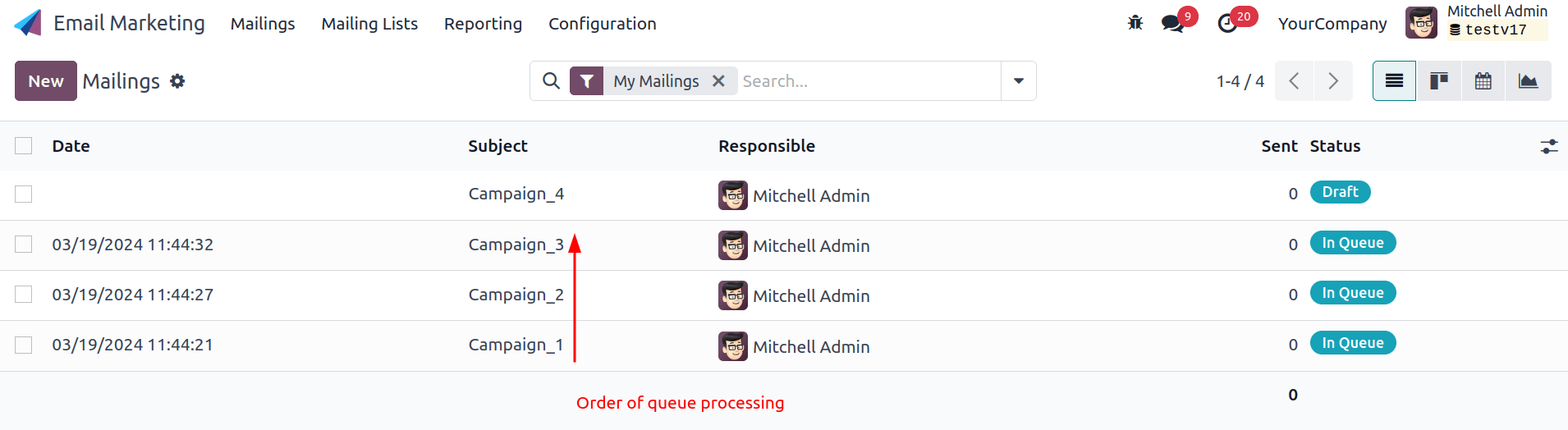
The cron will try to process Campaign_1, then Campaign_2, and finally Campaign_3. It will not start processing Campaign_2 until it finishes processing Campaign_1.
Incoming emails
When there is an issue with incoming emails, there might not be an indication, per se, in WindoorERP. It is the sending email client, who tries to contact a database, that will get a bounce message (most of the time a 550: mailbox unavailable error message).
Email is not received
You can use database logs to understand and fix issues. Logs are a stored collection of all the tasks completed in a database. They are a text-only representation, complete with timestamps of every action taken on the WindoorERP database. This can be helpful to track emails leaving the database. Sending failures can also be seen by logs when they indicate that the message tried to send repeatedly. Logs show every action to the email servers from the database.
Tip
The two most recent files, for the current day and the previous one, are named odoo.log and odoo.log.1.
Log files for older dates are named using their dates and are compressed. Use the commands grep and zgrep (for the compressed ones) to search through the files.
For more information on accessing logs via the command line, refer to the developer logging documentation.
The mail queue
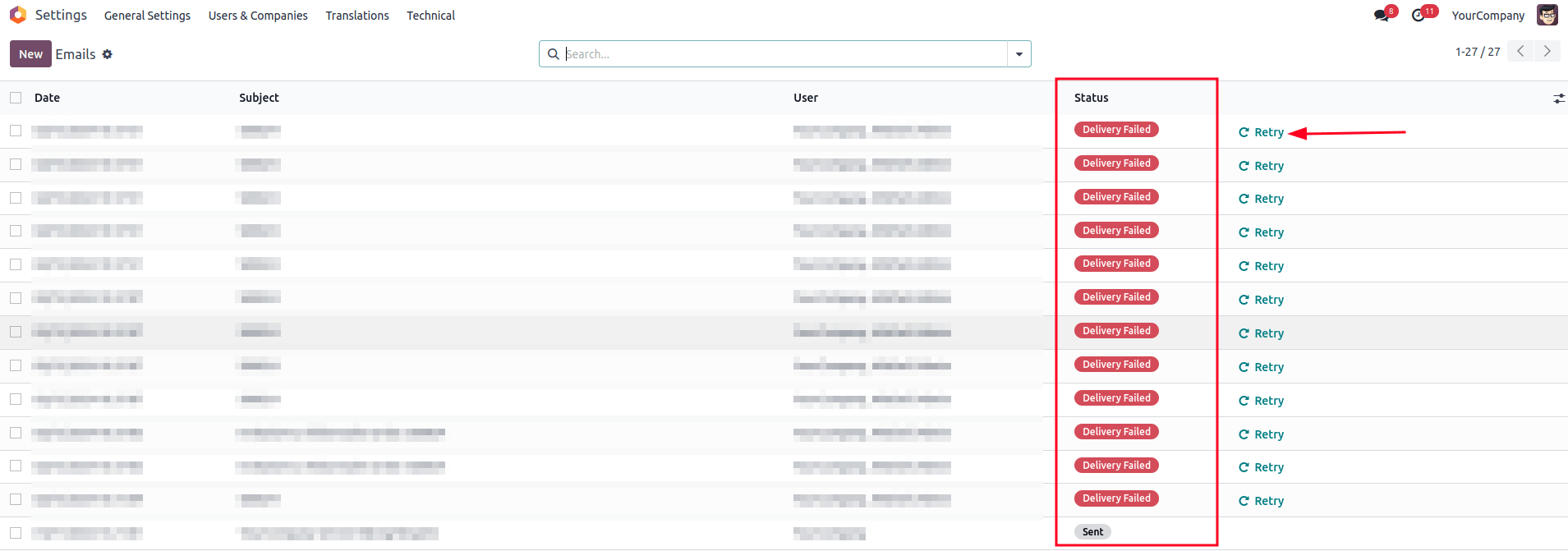
Unsent emails wait in a queue. In developer mode, open Settings › Technical › Email: Emails.
- Failed messages show Delivery Failed. Click Retry to put one back in the queue as Outgoing.
- Send Now pushes a queued message out immediately.
- Cancel Email takes it out of the queue for good.
- Sent messages are cleaned up periodically by the auto-vacuum scheduled action, so an old email missing from this list is normal.
Reading an SMTP error
Errors from your provider follow the standard SMTP codes; the numbers are universal, the wording is theirs. A 550 usually means the provider refused the sender address — for example a sending service replying that "the from address does not match a verified Sender Identity". The fix is on the provider's side: verify the address or the domain, then check the outgoing server's FROM filtering and the default From of the database.
When nothing is sent at the expected time
Not every email leaves at once. Individual messages — quotations, invoices, order confirmations — go immediately and never appear in the queue unless they fail. Bulk mail waits for a scheduled action:
- Mail: Email Queue Manager runs every 60 minutes by default. Fifteen minutes is a sensible floor; below five minutes the job may time out before finishing.
- Mail Marketing: Process queue runs once a day, and is triggered early when a campaign is scheduled sooner.
- Campaigns are processed in the order they were created, one at a time. A campaign stuck at the front holds up the ones behind it — cancel it and see whether the others move.

Scheduled actions are edited in developer mode under Settings › Technical › Automation: Scheduled Actions. Running one by hand repeatedly does not speed anything up and can create errors.
Provider limits
Every sending provider caps how much you may send, and blacklists senders whose mail bounces too often. If your mail stops going out in volume, check the provider's dashboard before suspecting the database. Cutting the volume helps too: followers who read their notifications inside WindoorERP instead of by email generate no outgoing mail at all.
Nothing comes in
Inbound problems are invisible from inside the database — it is the
sender who gets the error, usually 550: mailbox unavailable.
Ask them for the exact bounce text, then check the alias, the
redirection or the incoming mail server it should have used.
What to send WindoorERP support
When you contact info@windoorerp.com about email, include:
- The original message exported as
.emlor.msg— a forwarded copy loses the headers that matter. For outgoing mail, name the record and the exact date and time instead. - The flow that should have happened: is it a reply, a message sent by the database, a redirection, an incoming mail server?
- Whether it is a one-off or affects everything, and whether it started after a settings change.
Common mistakes
- Clearing the red envelope with Ignore all before reading the error — the evidence goes with it.
- Re-sending repeatedly to an address that bounces, which damages your sending reputation for everyone else.
- Shortening the queue cron "to make mail faster", and getting timeouts instead of speed.
- Assuming a missing email failed. Check the queue: it may simply not have left yet.
Was this article helpful?
Thanks — your feedback helps.
Running a window or door factory?
Ask for a demo