
Getting Started
Work faster with keyboard shortcuts
What this does
Keeps your hands on the keyboard for the things you do fifty times a day: create, save, move to the next record, jump to another app.
Steps

Users in WindoorERP can utilize several keyboard shortcuts to navigate through modules, execute actions, and manage data.
Tip
Hold Ctrl (macOS) or Alt (Windows / Linux) to view the keyboard shortcuts assigned to each element on the interface.
Important
Some keyboard shortcuts may not be available on different versions of WindoorERP or effective depending on browsers, extensions, or other individual settings.
-
01
Hold Alt (Windows or Linux) or Ctrl (macOS) — every element that has a shortcut shows its key.
-
02
Press the key while still holding, and the button is pressed.
-
03
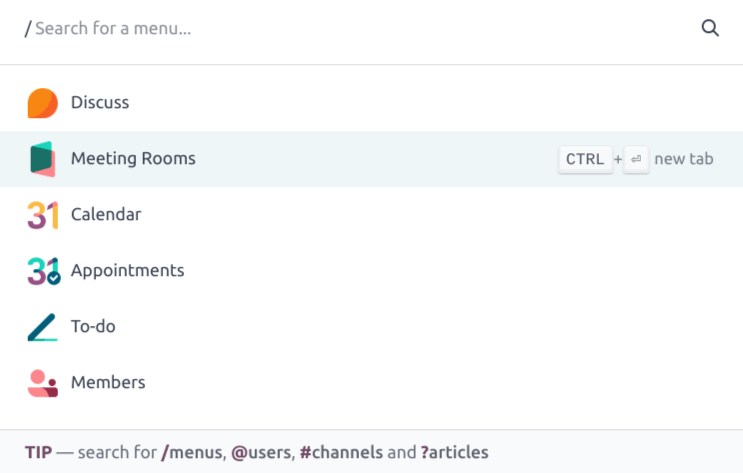
Press Ctrl+K (or ⌘+K) to open the command palette, and type what you are looking for.
-
04
Move through the results with the arrow keys and press Enter — or Ctrl+Enter to open it in a new tab.
Keyboard shortcuts by operating system
Below is a list of some of the most commonly used keyboard shortcuts within WindoorERP, listed by operating system.
| Description | Windows / Linux | macOS |
|---|---|---|
| Previous breadcrumb | Alt + B | Ctrl + B |
| Create new record | Alt + C | Ctrl + C |
| WindoorERP Home Page | Alt + H | Ctrl + H |
| Discard changes | Alt + J | Ctrl + J |
| Save changes | Alt + S | Ctrl + S |
| Next page | Alt + N | Ctrl + N |
| Previous page | Alt + P | Ctrl + P |
| Search | Alt + Q | Ctrl + Q |
| Select menus | Alt + 1-9 | Ctrl + 1-9 |
| Create a new To-Do | Alt + Shift + T | Ctrl + Shift + T |
| Search a Knowledge article | Alt + F | Ctrl + F |
| Share a Knowledge article | Alt + Shift + S | Ctrl + Shift + S |
| Open command palette | Ctrl + K | Command + K |
Tip
After opening the command palette, search using the following keyboard shortcuts:
- /: search for menus, applications, and modules.
- @: search for users.
- #: search for Discuss channels.
- ?: search for Knowledge articles.
Enter a name (or term) in the search bar, or use the arrow keys to scroll through the available options. Then, click Ctrl + Enter to open the selected app, module, or menu in a new tab.
The shortcuts worth learning
Windows and Linux use Alt; macOS uses Ctrl.
- + B — previous breadcrumb.
- + C — create a new record.
- + S — save changes.
- + J — discard changes.
- + N / + P — next and previous page.
- + Q — jump to the search bar.
- + 1 to + 9 — select a menu.
- + H — the home screen.
- Ctrl+K / ⌘+K — the command palette.
- Alt+Shift+H — open this manual on whatever screen you are on.
Inside the command palette
A first character narrows the search:
/— menus, applications and modules.@— users.#— Discuss channels.?— knowledge articles.
Common mistakes
- Assuming a shortcut is broken when a browser extension has taken the same combination — test in a private window before reporting.
- Using the browser's Back button instead of Alt+B: unsaved changes are lost.
Was this article helpful?
Thanks — your feedback helps.
Running a window or door factory?
Ask for a demo